
Assigning an Action
Use Add Action in the ComplianceTrackr mobile app to record an issue found while completing a form, set a risk or priority level, and assign follow-up work to a user with a due date.
Note: Actions can currently be assigned from the ComplianceTrackr iOS and Android app only. Desktop assignment will be available when the Windows desktop app is released.
Before you start
- You must be logged in to the ComplianceTrackr mobile app.
- Open a form that includes an Add Action option on a question (for example, a hazard or inspection form).
- The person you assign the action to must already have a ComplianceTrackr user account with app access.
What Attach Photo and Add Action do
On many form questions you will see two buttons under the answer field:
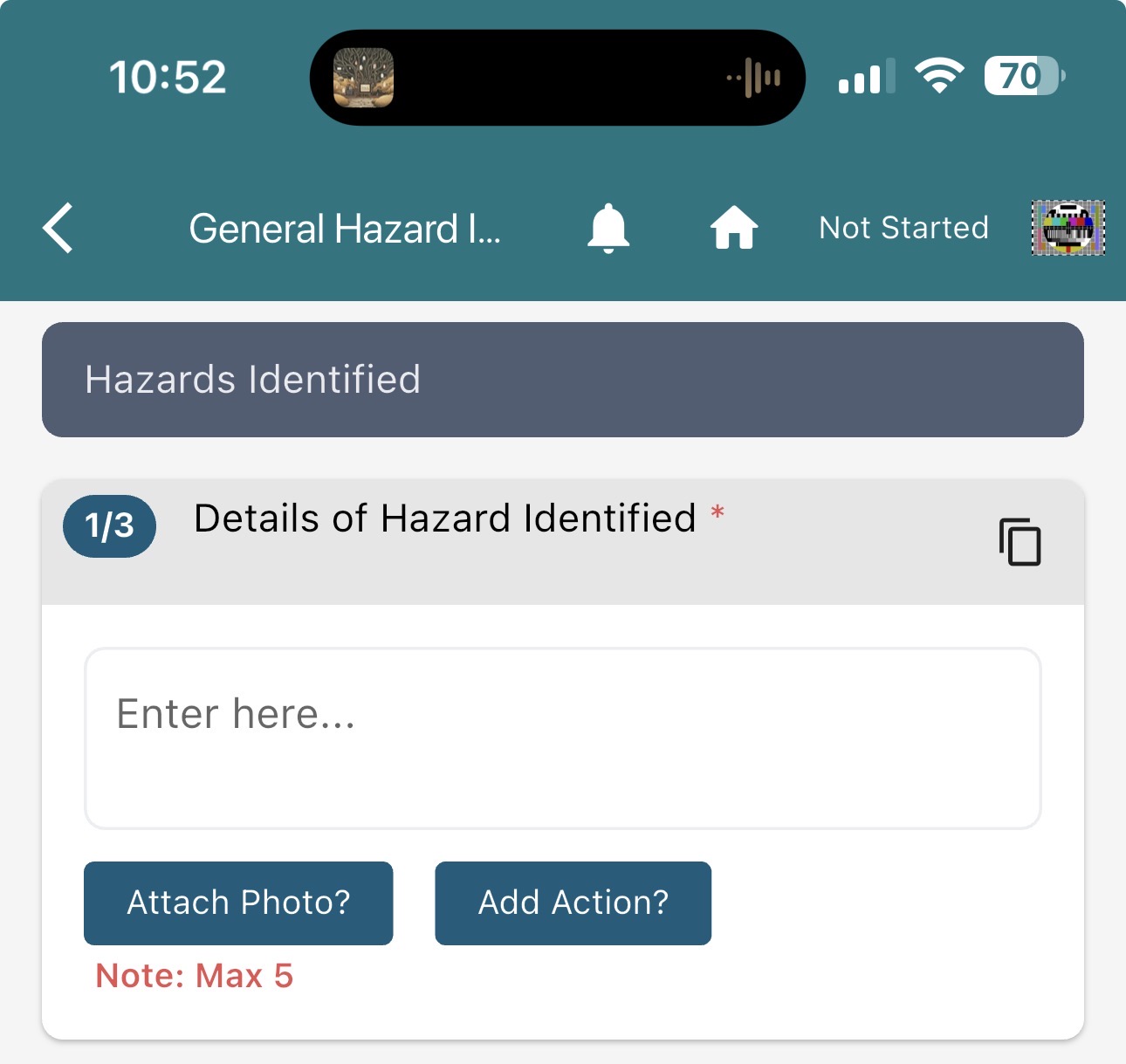
- Attach Photo? — attach up to 5 photos to that answer.
- Add Action? — create an action from that answer and, if needed, assign it to a user.
You can attach photos, add an action, or do both.
Step 1: Answer the question
- Open the form in the mobile app and go to the relevant question. In this example the question is Details of Hazard Identified on a General Hazard Inspection.
- Enter a short description of what you found. Example: I have found a hazard.
- Optional: tap Attach Photo? if you want photos on the answer. You can add up to 5.
- Tap Add Action?.
Step 2: Set the risk level
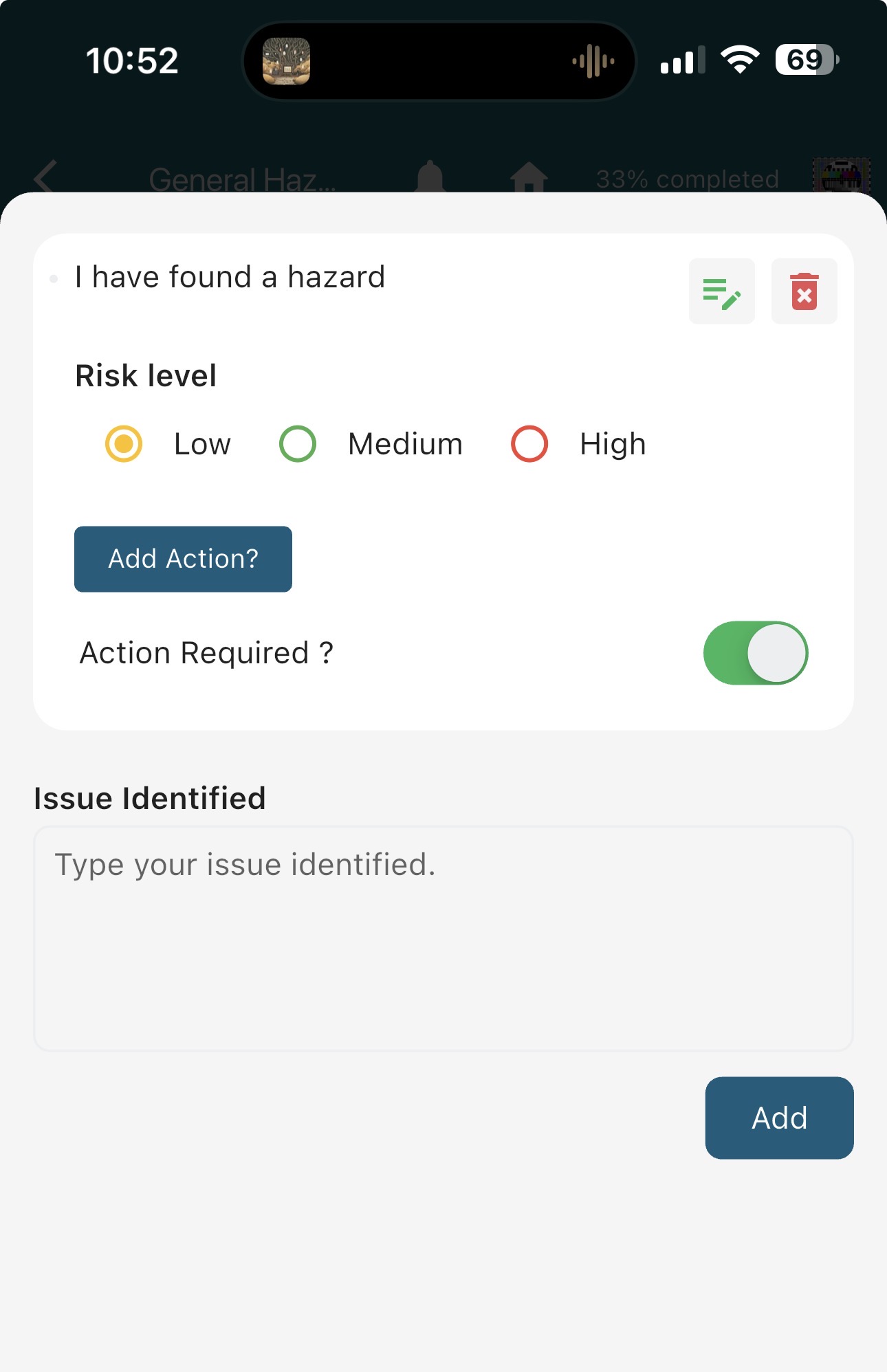
The next screen shows the text you entered. From here you can:
- Select a Risk level: Low, Medium, or High.
- Leave Action Required? switched on if someone needs to follow up, or switch it off if you only need to record the issue and risk level.
- Add another issue in the Issue Identified field if required, then tap Add.
You can set a risk level without assigning an action. To assign follow-up work, keep Action Required? on and tap Add Action?.
Step 3: Add the recommended action and assign it
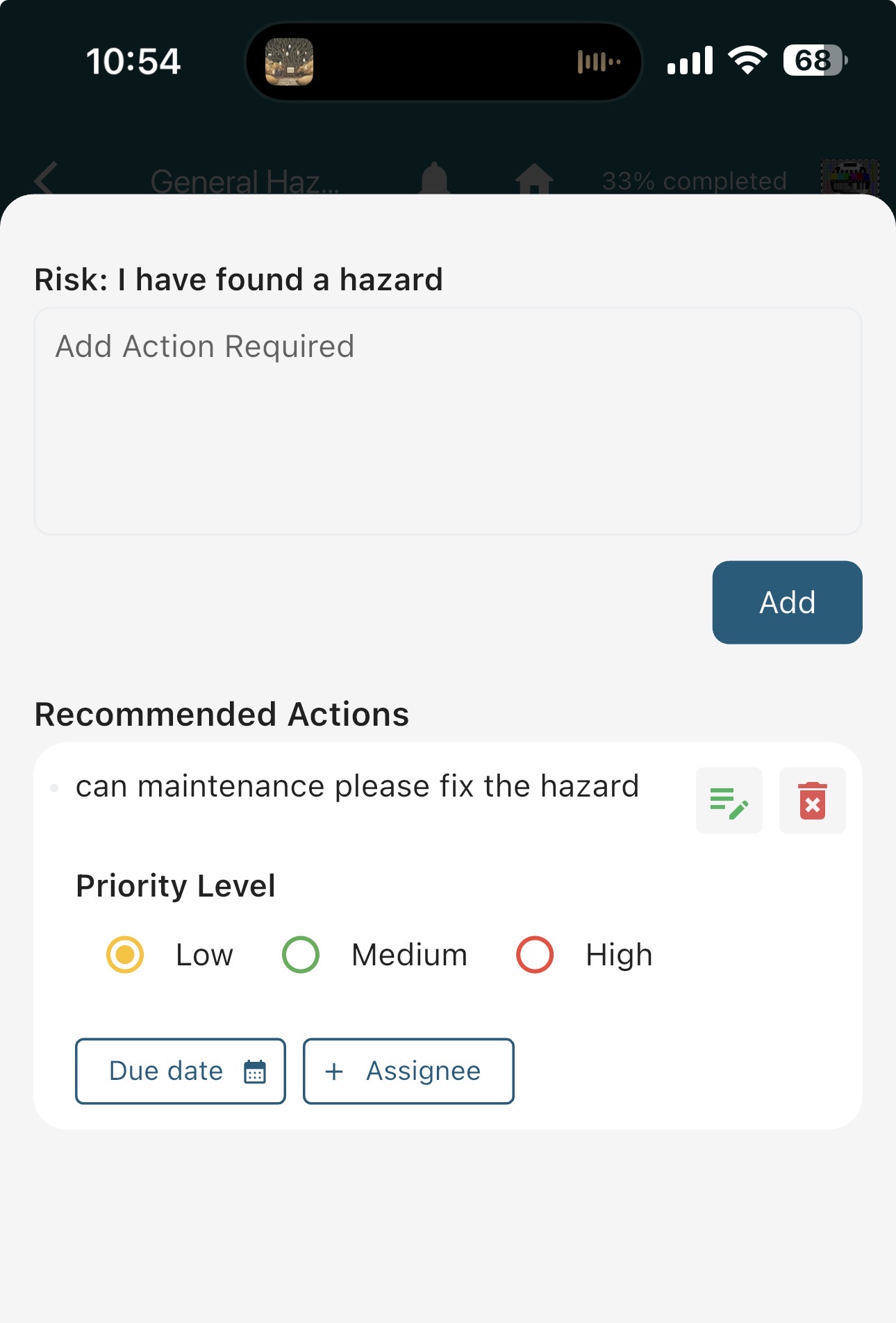
- In Add Action Required, type what needs to be done. Example: Can maintenance please fix the hazard.
- Tap Add. The action appears under Recommended Actions.
- Set a Priority Level: Low, Medium, or High.
- Tap Due date and choose when the action should be completed.
- Tap + Assignee and select the user who should complete the work.
You can add more than one recommended action if several follow-up tasks are needed.
Step 4: Save the action
Save or continue the form as usual. After the action is saved:
- The assigned user receives an email.
- The assigned user also receives an in-app notification.
Tips
- Write a clear recommended action so the assignee knows exactly what to do.
- Use the risk level for the issue you found, and the priority level for how urgently the follow-up should be done.
- You can record a risk without assigning anyone. Use that when the issue is noted only, and no follow-up task is required.
- If the person you need is not in the assignee list, they may not have app access yet. A manager or site admin can enable access for them.
View action and form details (Managers and above)
After an action has been assigned, Managers and above can review the full details in the desktop portal.
Use the Site Wide Reporting page to see detailed information for each action and the related form details.
- Open Site Wide Reporting in the desktop portal.
- Find the action to review who it was assigned to, the due date, priority or risk level, and the original form answers.
- Use this page to follow up on open actions across the site, instead of opening each form one by one in the mobile app.
Note: Site Wide Reporting is available to Managers and above. Users below Manager will not see this page.