
Creating Maintenance Forms V2
Creating a Maintenance custom form from scratch (role manager+ use)
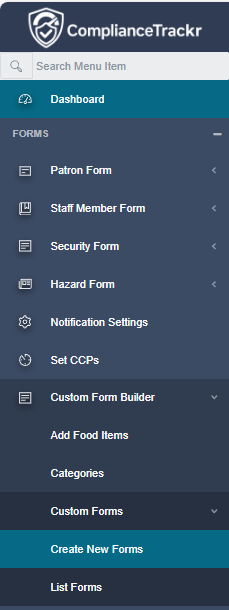
Step 1: Open the Custom Form Builder
- From the ComplianceTrackr Portal (Desktop Dashboard)
- Select Forms from the left sidebar
- Click Custom Form Builder
- Scroll down and select Custom Forms → Create New Forms
Step 2: Form Details
Complete the following:
- Form Name: Maintenance Request
- Form Type: Maintenance
- Incident Category: Maintenance Request
- Memberships: Select your site/venue

Optional settings:
- Restrict the form to specific staff (Users) or groups (Roles)
- Enable email/SMS notifications when the form is submitted
- You can add/edit your own Categories see “Categories” from the Menu.

Step 3: Schedule the Form (Optional)
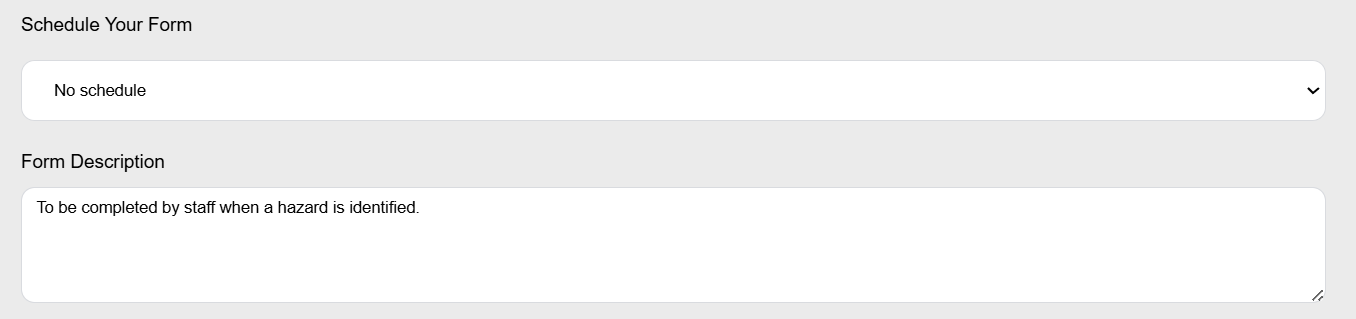
The schedule controls when a form is due and how often it must be completed. If not required, leave unscheduled.
Choose if this form must be completed:
Daily Schedules
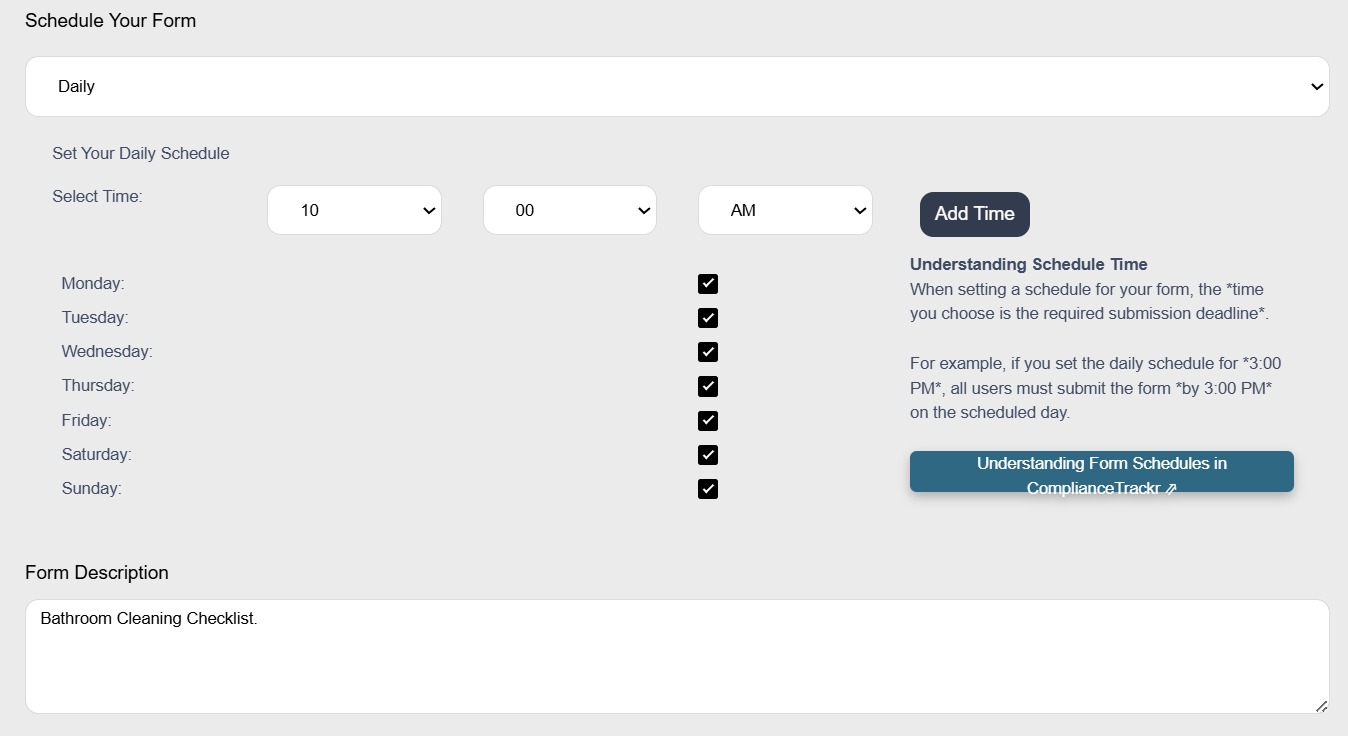
- The selected time is a deadline
- The form must be submitted before this time each day
Example:
Daily at 10:00AM
→ The form must be submitted by 10:00AM every day
- Daily is the only schedule that uses a time-based deadline.
Weekly & Monthly Schedules
- No specific time applies
- The form can be submitted any time on the due day
- You also can have multiple times a day in a daily form.
Quick Tips
- Use Daily when a strict time deadline is required
- Use Weekly or Monthly when time is flexible
- Make sure staff understand:
- Daily = time deadline
- Weekly/Monthly = any time during the day
- Review schedules regularly to match how your site operates
Step 4: Add Form Description
- Example:
This form must be completed when internal or external maintenance is required on venue or equipment
Below are the list of avaiable answer types for Maintenance Forms. (Jan 2026)
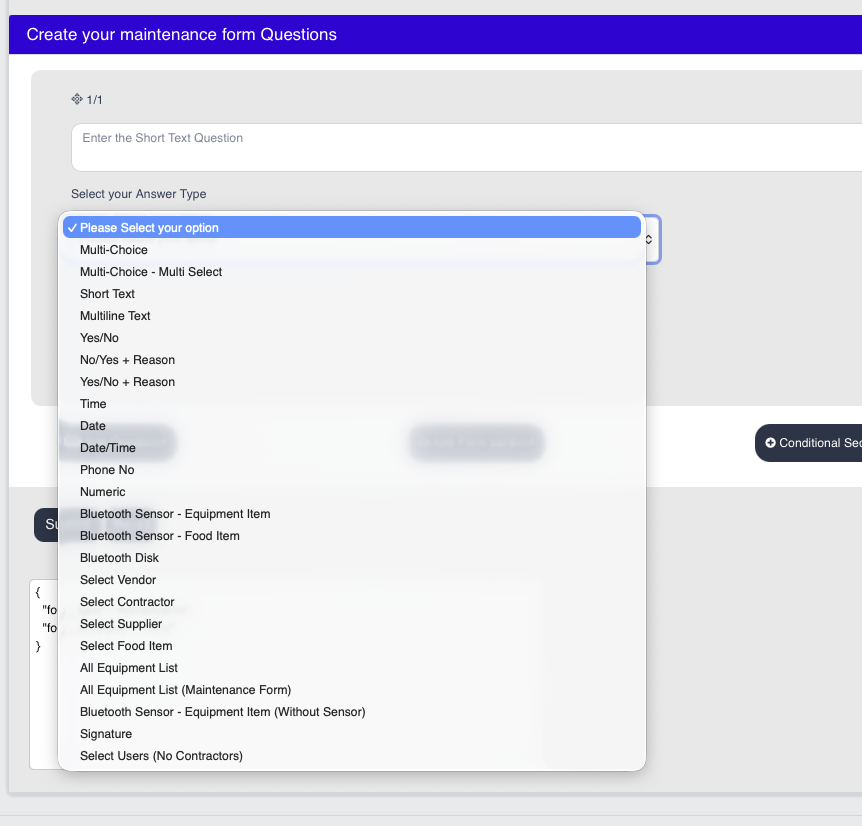
Step 5: Build the Maintenance Form
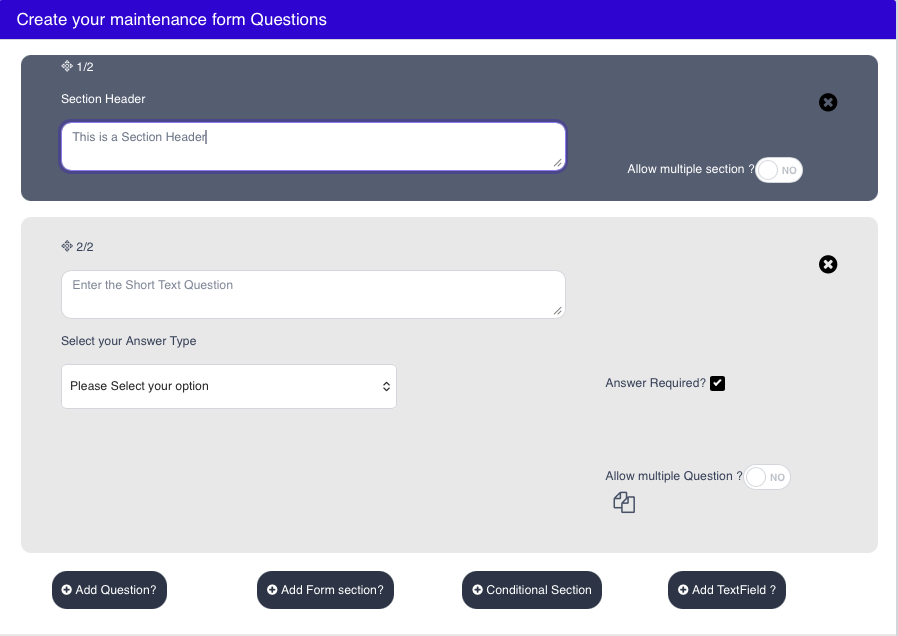
- Select + Create Custom Venue Questions
- Start building your form:
Quick Tips for Creating Forms
When creating a form, you can also:
- Group questions into sections (e.g. Maintenance Request Details, Staff Details)
- Add instructions or notes
- Use conditional sections if follow-up information is required. See below:
Add questions
Include the questions you want users to answer.
Create sections
Group related questions together using section headers (e.g. Incident Details, Summary of Incident).
Use conditional logic
Show extra sections only when required.
- Example: If a user toggles “Yes”, additional questions appear.
- These sections must be completed before the form can be submitted.
Add text and instructions
Include notes or guidance to help users complete the form correctly.
- Quick Tips for Creating Forms
When finished, click Submit.
How The Form Appears in the App (Staff Use)
Once submitted, the Maintenance Form is immediately available in the app.
Completing the Form in the App
- Open the ComplianceTrackr App
- Go to Forms
- Select Maintenance Forms
- Tap New Forms
- Select Maintenance Request (what you called the form when you created it)